
5 AI workflows for first-meeting wrap concepts — tested side-by-side
Most visitors show up with a single photo of their vehicle and want to see a concept for a commercial wrap — something to show a client in the first meeting. We built 5 very different AI workflows for that job, ran each one 4 times on the same fictional brief, and compared them honestly. These are experiments, not necessarily what's in production today.
Why we built an AI vehicle wrap generator — and what it needed to get right
Since wrapstudio.ai went live, the overwhelmingly most common thing a visitor wants is simple: "here's a photo of my vehicle, show me what a commercial wrap could look like on it." Not a final print-ready design — a concept. Something to put in front of a client in the earliest conversation, so the client can react to it and the real design work can start.
Generic AI image tools aren't quite good enough for that today. The wraps look pasted on, text gets mangled, logos get redrawn, the vehicle itself subtly changes shape. So we've been running experiments to find what actually works for this specific job — turning a vehicle photo plus a short brief into a concept you'd be comfortable showing a client in the first meeting.
This post shares the learnings we found most useful. These are experiments, not necessarily what the production tool runs today. The product keeps evolving as we learn. We're sharing the lessons, not a snapshot of the product.
A few questions we were trying to answer:
- Should we generate a flat 2D design and paste it onto the vehicle? Or generate the wrapped vehicle directly?
- Is text something we can get AI to draw reliably, or do we need a separate step for it?
- Do reference images (photos of real wraps) actually help, or is a good text description enough?
- What's the right trade-off between speed, quality, and consistency?
If you work with wraps for a living and have suggestions on what should go into a good first-meeting concept — things we should be paying attention to that we're not — please reach out. That kind of input is exactly what we need.
Test setup: one van, one brief, 5 AI wrap-generation workflows
We created a fictional small business — Pampered Paws Mobile Grooming — and put together a brief that looks like what a real customer would bring us:
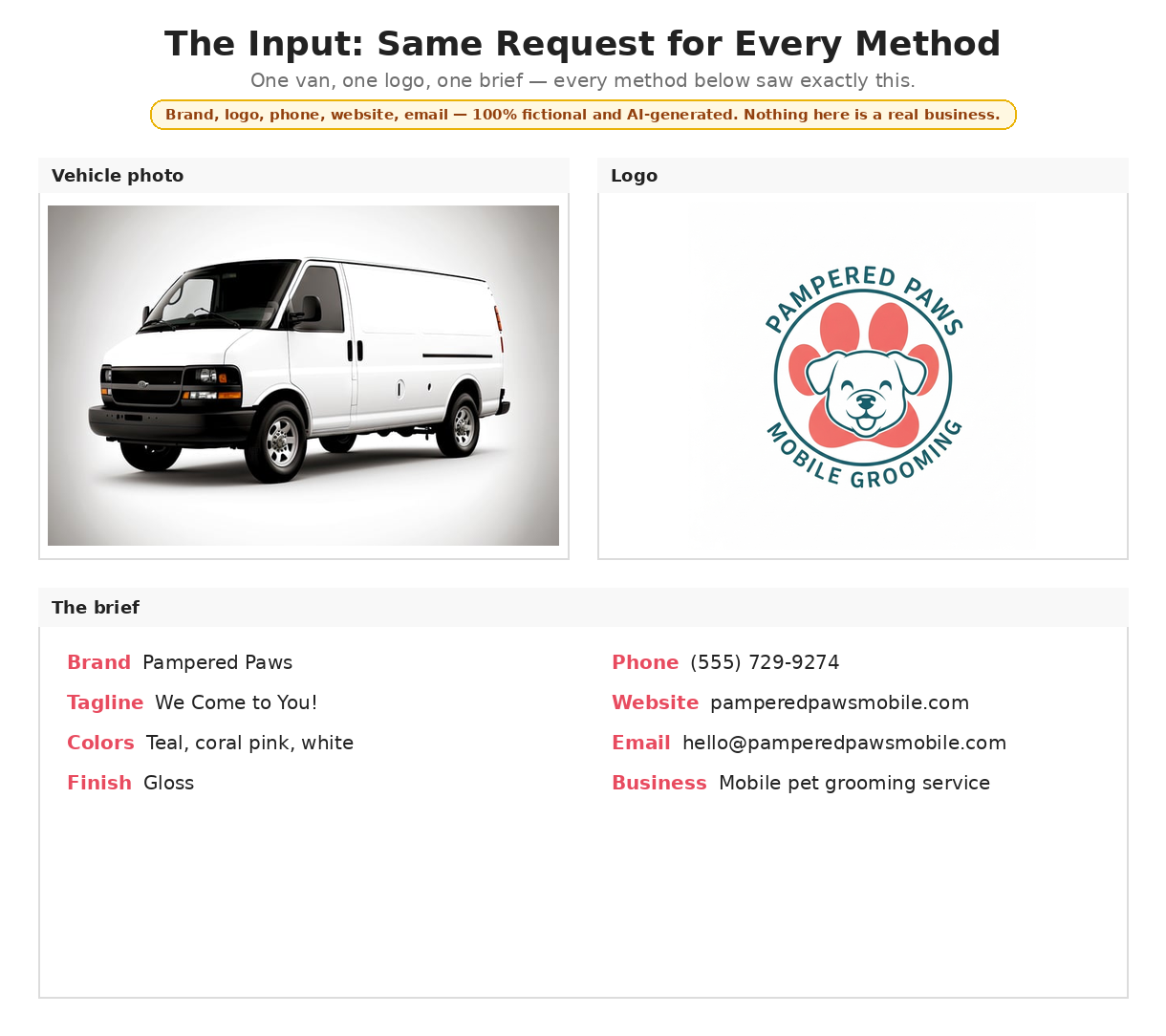
Heads up: everything about "Pampered Paws Mobile Grooming" in this post is fictional. The brand name, logo, phone number, website, email, and tagline were all fabricated or AI-generated for this test. No real business was involved. We picked a fake brief on purpose so nobody got dragged into our experiments.
- Vehicle: a white Chevy-style cargo van, studio photo
- Logo: a simple circular logo with a dog and a paw print (AI-generated, fictional)
- Brand info: brand name, tagline, phone number, website, email, color palette, gloss finish
Every workflow in this post got exactly this input. No human editing in between. We ran each workflow 4 times to see how consistent it is, because a workflow that produces one amazing result and three bad ones is useless for real customers.
We tested more workflows than what's shown here — various minor variations on these themes. These 5 are the ones worth talking about because each one taught us something different.
Workflow 1: generate a wrap on a generic van, then transfer it to the real vehicle
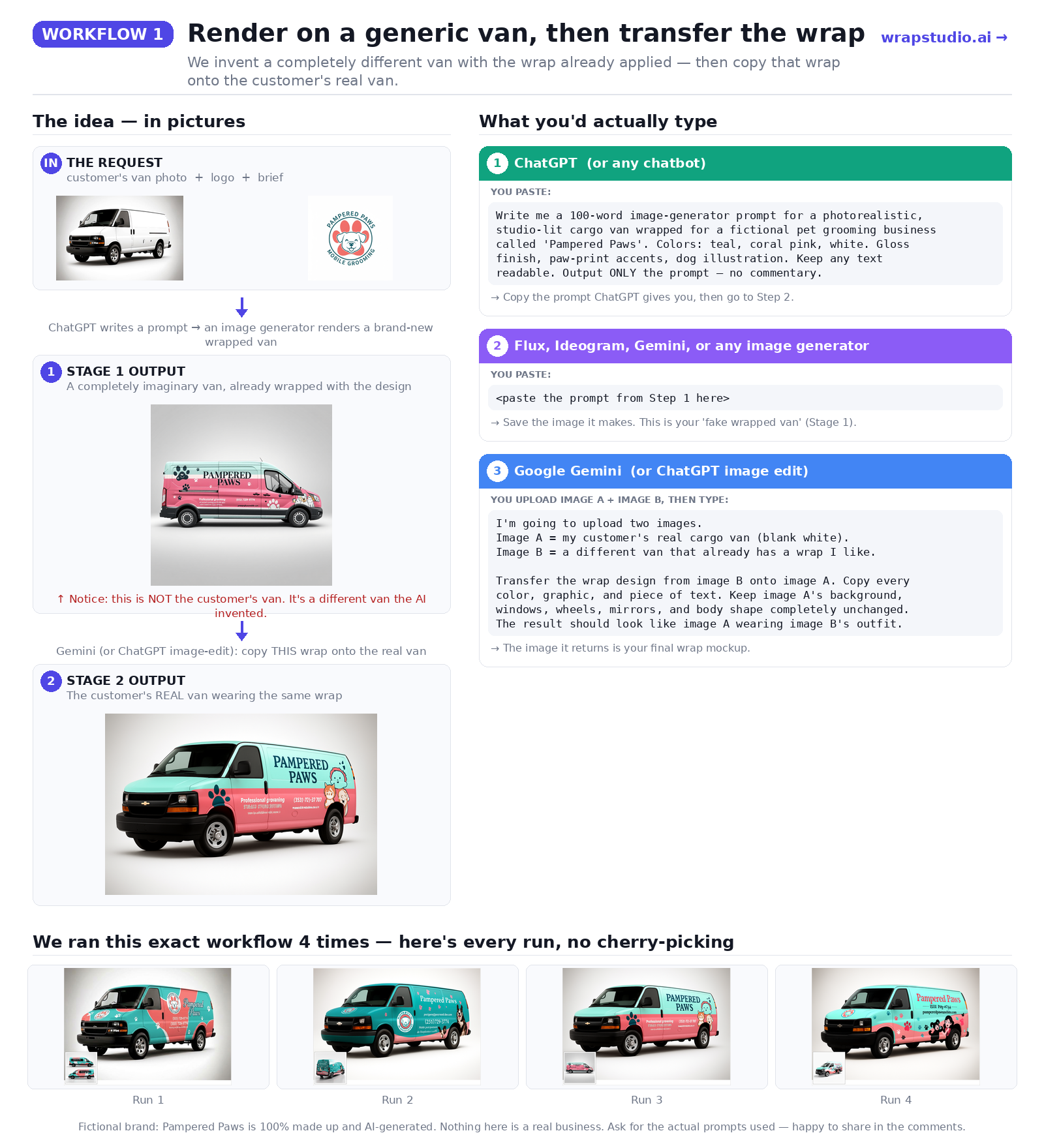
The idea. Pasting a flat 2D design onto a curved van photo always looks fake — the lighting, perspective, and shadows never match. So what if we sidestep that whole problem? Let the AI generate a wrap on any van first (where it already understands how a wrap sits on a 3D surface), and then transfer just the wrap design from that van onto the customer's actual van photo.
What happened. All four runs got the brand name ("Pampered Paws") right, but every other piece of text was broken — phone numbers off by a digit, websites scrambled, emails missing.
Because the image passes through two separate AI steps, we also saw a visible quality drop. Colors faded, edges softened, logo details blurred. Each pass through the AI is like a slightly lossy compression — you can feel it after two rounds.
Verdict. The transfer step is fundamentally hard, and the double pass kills image quality. Not viable on its own, but the consistency told us something useful: the core problem was specifically text, not the overall approach. That was a useful clue for the next workflows.
Workflow 2: AI wrap design without text first, then add text with spell-check
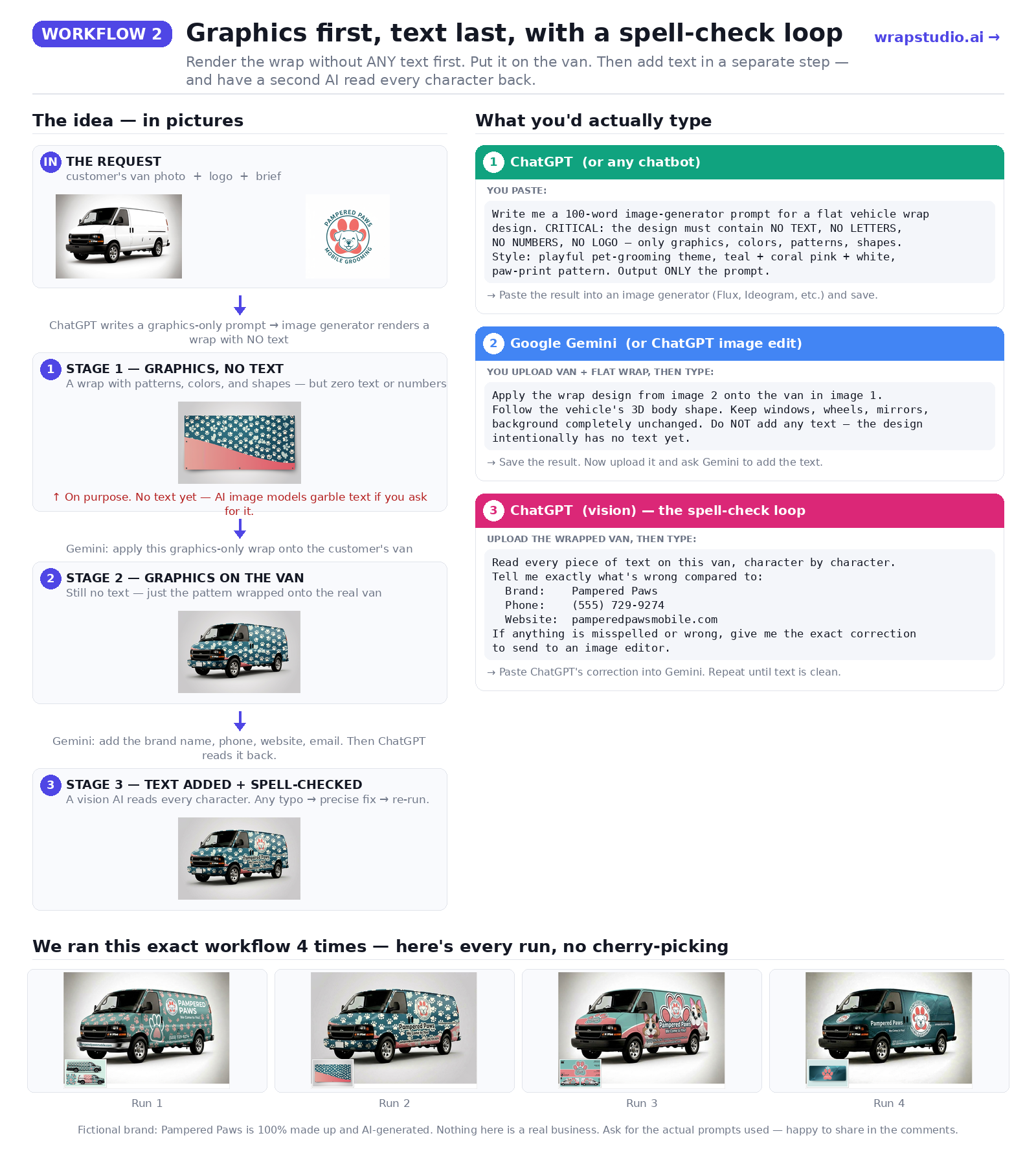
The idea. If text is the problem, just don't put any text in the design at first. Generate the wrap with graphics only — colors, shapes, patterns. Then, in a separate step, overlay the text. After the text is added, have a second AI literally read every character on the image and verify it's correct. If anything's wrong, send a precise correction and re-run until it's clean.
What happened. The verify-and-fix loop was the single most important unlock we found. Every phone number, website, email, tagline, and brand name came out exactly right on every run.
The visual quality was more of a mixed bag — some of the graphics-only starting points looked great, others felt generic. But this was the first workflow that actually solved the text problem, which matters more than getting lucky on visual quality.
Verdict. Text is solvable with a verify-and-fix loop. Design quality still needs work. This insight — that text needs its own QA step — carried into every workflow we've built since.
Workflow 3: design the wrap on a flat panel with Ideogram, then composite onto the vehicle
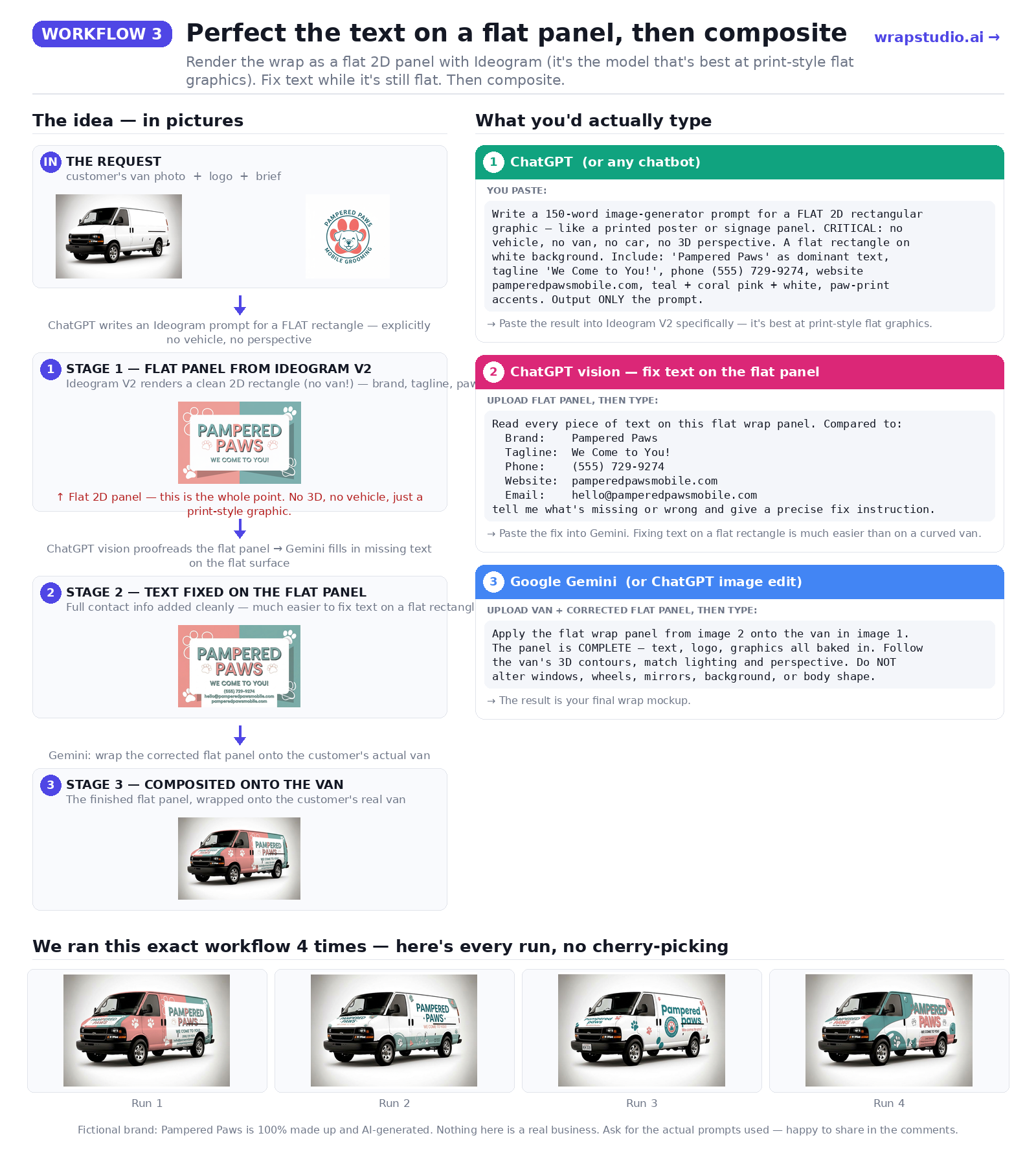
The idea. Text is easier for AI to draw correctly on a flat 2D surface than on a curved 3D one. So design the entire wrap as a flat rectangle first, iterate until the text is perfect (much easier when the surface is flat), then composite the corrected flat design onto the curved van.
Why Ideogram for this stage. For the flat-panel step specifically we use Ideogram, which is particularly strong at typographic layout and print-style flat graphics. The flat panels it produces look like actual print-ready signage — clean typography, proper hierarchy, professional layout. Other image generators tend to produce more painterly output that doesn't composite as cleanly.
What happened. With Ideogram rendering the flat panel and a separate AI verifying the text while it's still flat, we got readable, mostly-correct text more often than any "add text after composite" approach. But the workflow is significantly slower and more expensive than the others.
And the final "composite onto the van" step still occasionally introduces a faintly pasted-on look. When the flat panel is beautiful but the composite mangles it, you've wasted a lot of the earlier work.
Verdict. Fixing text on a flat panel is a good idea — using Ideogram is what makes this stage viable. But the compositing step at the end is still the same fundamental challenge from Workflow 1. Useful when a client specifically wants a clean, legible flat version first; not our daily driver.
Workflow 4: one-shot AI vehicle wrap mockup using real wrap photos as reference
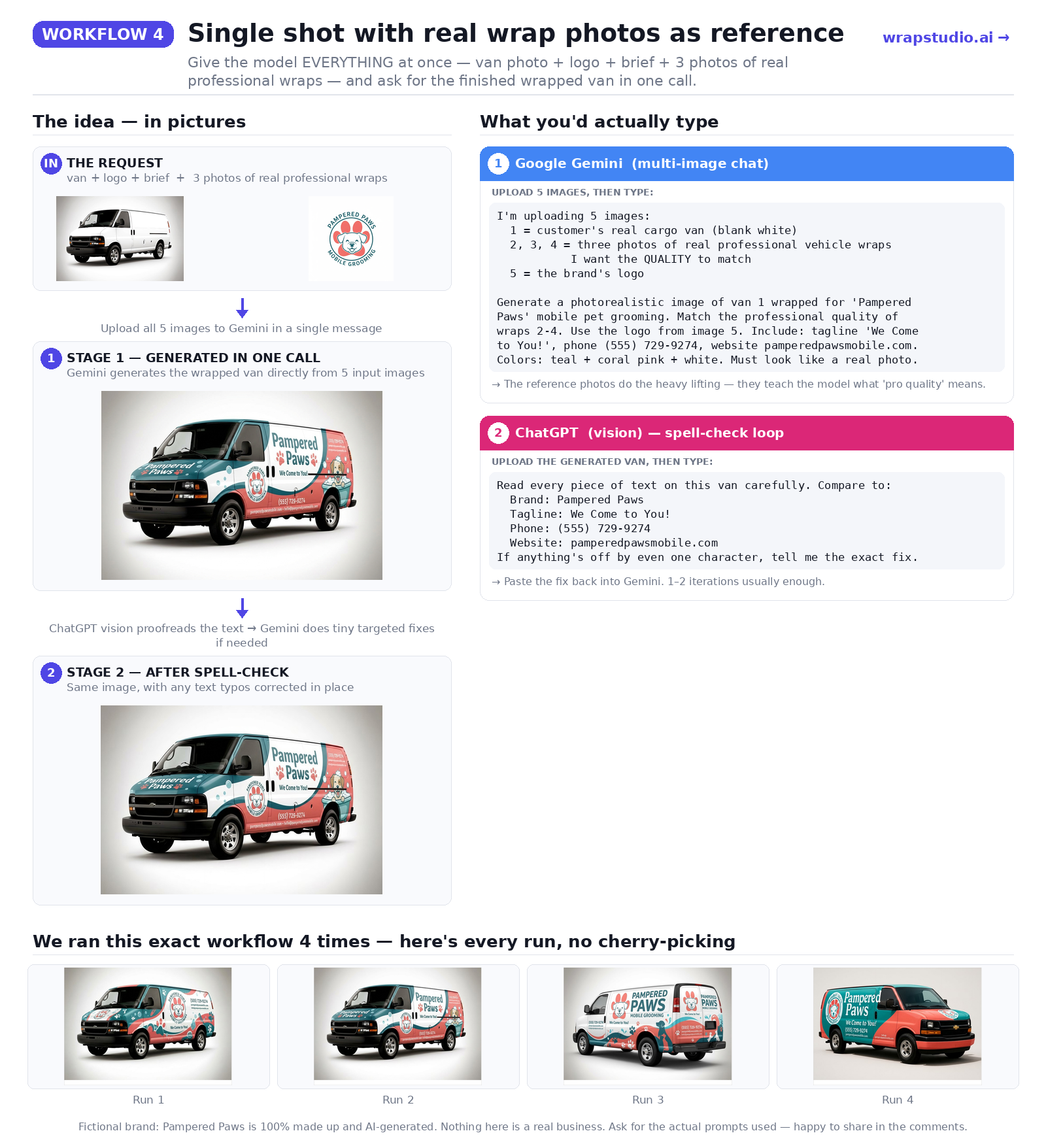
The idea. Stop compositing. Instead, give the AI everything at once in a single request:
- The customer's vehicle photo
- The brand logo
- The brief (brand name, colors, contact info)
- Three photos of real, professional wrapped vans as reference
Then ask it to generate the wrapped vehicle directly. No flat designs. No transfer steps. No paste jobs.
Instead of trying to describe in words what a "good wrap" is, we show it three examples and let the AI figure out coverage, flow, text placement, lighting, and how a wrap actually sits on a real van.
What happened. This was the jump. All four runs looked like photos of real wrapped vans:
- No floaty pasted-on edges
- Lighting matches the original vehicle photo
- Logo sits naturally on the surface, curved with the body
- Text placement follows the body lines the way a real designer would lay it out
The reference photos did the heavy lifting. Three reference photos taught the AI more than weeks of prompt writing.
Verdict. First workflow that produced results we'd actually put in front of a customer. "Show, don't tell" is the unlock.
Workflow 5: AI-enhanced brief for creative wrap concepts, then one-shot generation
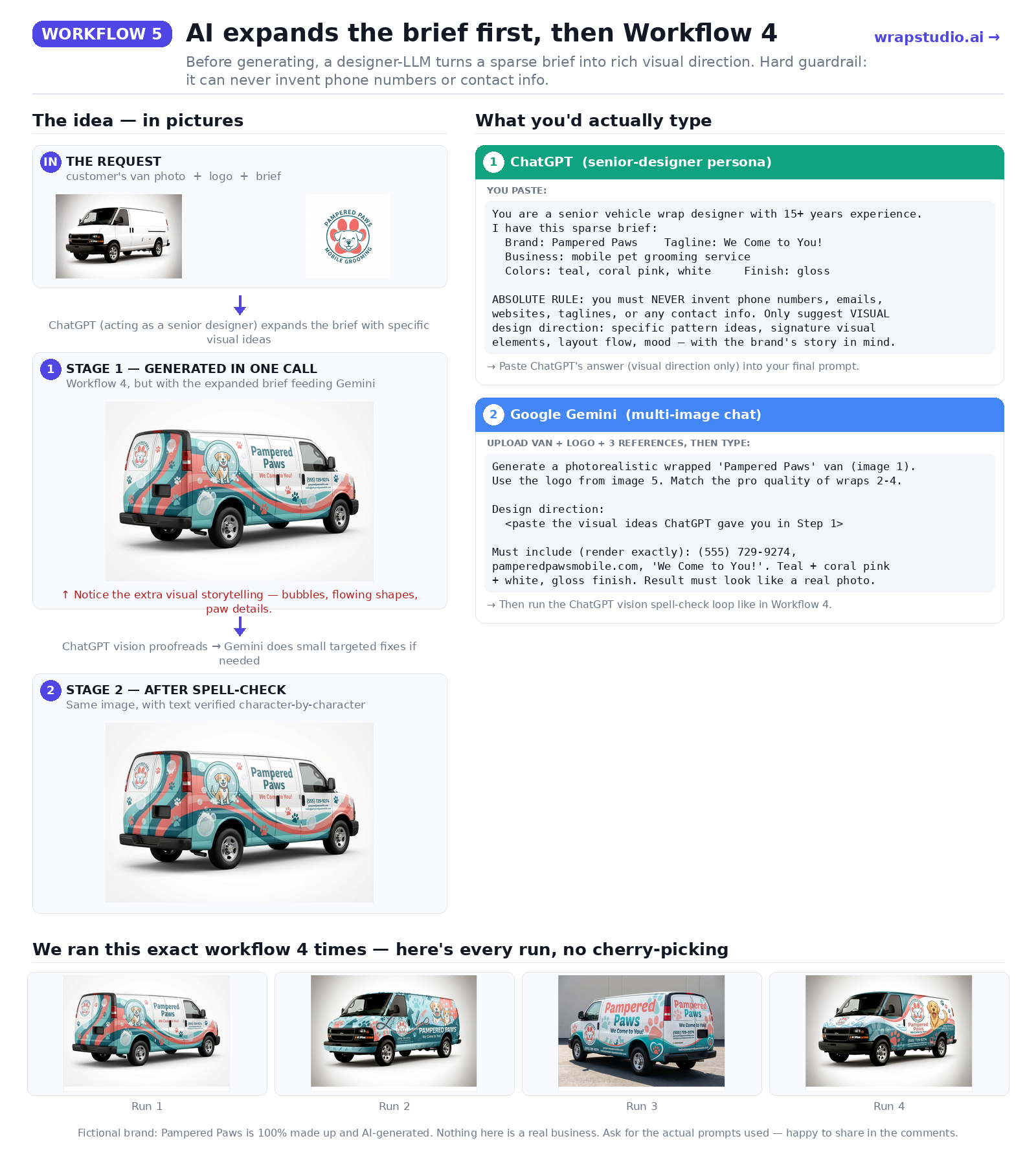
The idea. Real customer briefs are often sparse. "Make it look cool." "Something modern." "Pet grooming company, teal and pink."
If the brief is thin, even Workflow 4 produces generic output — because the AI doesn't have enough to work with creatively. So before we generate anything, we have another AI step that reads the brief and suggests visual design elements that fit the business. For a pet groomer, that might be:
- Flowing organic curves
- Bubble and foam accents
- Paw print patterns
- A friendly dog illustration
Then we feed those suggestions into Workflow 4's single-shot generation.
What happened. The most consistent of all five workflows. No bad runs. Every one of the four outputs had a cohesive, story-driven feel — bubbles, flowing shapes, a dog illustration, paw accents — instead of just "a van with teal and pink on it."
One important guardrail: the AI that enhances the brief is only allowed to suggest visual elements. It's explicitly blocked from inventing phone numbers, brand names, taglines, or any contact info. In earlier experiments we had a real problem with AI "helpfully" inventing fake phone numbers — and those numbers would show up on the wrap. The hard guardrail fixed it.
Verdict. Best workflow overall — not because the best run was better than Workflow 4's best (they're close), but because the worst run of Workflow 5 was dramatically better than the worst runs of every other workflow. For a product that needs to be reliable, that matters.
What I've learned about AI-generated vehicle wrap design
These lessons come from a lot more than what's in this post — I've been running variations of these workflows for a while. These are the things that have held up the most consistently:
1. Fewer steps = better quality.
Every time the image passes through another AI edit, it loses a little sharpness and color fidelity. The workflows with the cleanest image quality generate the final image in a single pass. Multi-step workflows always look softer.
2. Show the AI examples, don't describe them.
This is the most counter-intuitive lesson. Weeks of crafting detailed text descriptions of "what a professional wrap looks like" couldn't compete with three reference photos of real wraps. This is how human designers learn too — by looking at other designers' work.
3. Text is harder than it looks, and it needs its own step.
Design is still the skill that matters most — text isn't the hardest part. But it fails in an especially visible way: a garbled phone number ruins an otherwise decent concept. No AI image generator reliably renders a full set of small text (phone + website + email + tagline) in one shot. The only thing that consistently works is having a second AI read the finished image back and send precise corrections.
4. Sparse briefs need creative help.
When customers submit thin briefs (and they will), generic output is unavoidable unless you add creative direction somewhere in the process. Workflow 5's "AI expands the brief first" step lifts every output noticeably. The trick is the guardrails — the AI is allowed to invent visual direction, never to invent facts.
Where AI wrap generation still falls short
None of this is a solved problem. Every workflow above still has failure modes we deal with case-by-case:
- Unusual logos. Logos with fine detail, tight kerning, or non-English scripts still get redrawn or softened. We have separate handling for this but it's not perfect.
- Dark vehicles and complex surfaces. Black paint, chrome trim, and heavy reflections confuse the lighting, especially on the one-shot workflows. Light-colored vehicles are noticeably easier.
- Specific fonts. If a customer insists on an exact typeface match, AI rendering will get close but not exact.
- Fleet consistency. Generating the same design across 10 vans with slightly different angles is still hard — the AI doesn't yet have a robust "same design, different viewpoint" mode.
We keep iterating on all of these. What's in production today is always evolving.
The bottom line: building a better AI vehicle wrap mockup tool
Most visitors to wrapstudio.ai show up with a single photo of a vehicle and want to see what a commercial wrap could look like on it — something to show a client in the first meeting. None of the workflows here are perfect for that yet. Some get close. Here's what we keep coming back to:
- Don't composite if you don't have to. Generate in one shot when possible.
- Show, don't tell. Reference photos of real wraps teach the AI more than any description.
- Treat text as its own problem. Verify the image, don't trust the generator.
- Help sparse briefs. Let an AI expand a thin brief into visual direction — but never into facts.
If you work with wraps for a living and something in here doesn't match your reality, or you have suggestions for what a "first-meeting concept" should really contain to be useful — please tell us. That kind of input is the single most valuable thing we can get.
If you just want to play with the tool without worrying about any of this, wrapstudio.ai is the early-concept sandbox we're building around these lessons. Upload a vehicle photo, add a brief, and see what comes out.
Try it, or tell me what I'm missing
WrapStudio AI is the early-concept sandbox I'm building around these experiments — upload a vehicle photo and a short brief, get a concept in minutes. It's free to try.
Got feedback, a suggestion, or a tricky case you want tested? I read every message — email [email protected].